The absence of the Play Store on LG Smart TVs is not simply due to a technical oversight. The built-in WebOS operating system limits access to Android applications and imposes unexpected constraints for adding external services. However, solutions exist to bypass this restriction and enrich the available application catalog.
Some lesser-known methods allow for the installation of Android applications on these televisions. Whether through store workarounds, the use of external boxes, or software tricks, the choice depends on the desired level of customization and the available hardware.
Why the Play Store is not directly accessible on LG Smart TVs
LG Smart TVs run on WebOS, a system designed by the brand for its own televisions. This choice shapes the software environment and imposes a precise framework: here, there is no Play Store, as the Android TV ecosystem is simply not present. The result: by default, it is impossible to install the vast majority of Android applications available on the Play Store.
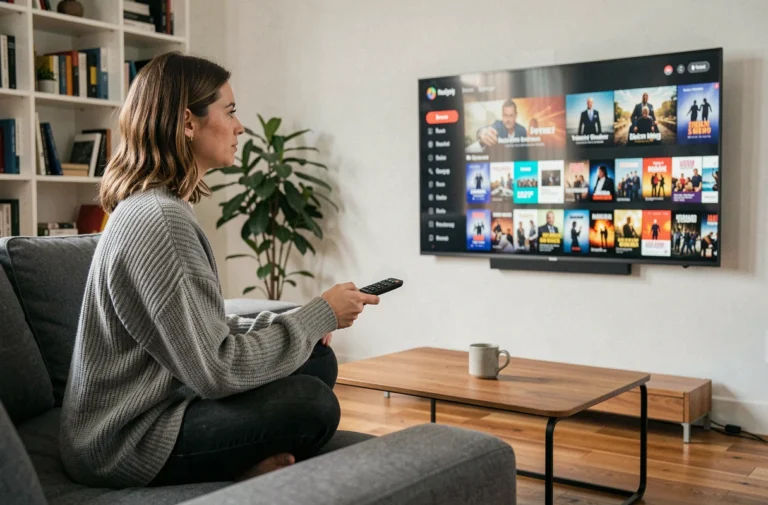
To still provide access to key applications, LG has built its own store: the LG Content Store. It features Netflix, YouTube, Amazon Prime Video, Disney+, and HBO Max. But the selection remains limited. Users quickly encounter the restricted catalog of WebOS and the inability to directly install APK files from a standard Android store.
The Google Play Store requires deep integration with Android TV. That’s why the procedure to install the Play Store on LG TV differs radically from what is done on other platforms. To better understand this logic, here are the main points to remember:
- LG Smart TVs run on WebOS
- WebOS does not allow direct access to the Google Play Store
- The LG Content Store offers a much smaller selection of applications than an Android store
For those who want to explore alternatives and better understand the technical limitations of WebOS, the resource “How to install Google Play Store on LG Smart TV? – 3e habitat” details existing methods and the architectural choices that condition the LG ecosystem.
Installing the Play Store on your LG Smart TV: a step-by-step guide for every possible method
On an LG Smart TV, the Google Play Store is not present by default. But there are several alternatives, each with its own specifics, strengths, and weaknesses. Here’s what you need to know to choose the solution best suited to your hardware and expectations.
Using a compatible external Android device
The most reliable method is to connect an external device: a HDMI dongle, Android TV box, or Chromecast. Plug it into an HDMI port, follow the setup process, and then access the Play Store through the Android interface of the box. You will then experience the full Android TV experience, with the freedom to install any application available on the Play Store.
Sideloading an APK on WebOS
For advanced users, it is possible to attempt sideloading an APK. This involves manually installing an Android application via a USB drive after enabling developer mode and allowing unknown sources on the TV. Be aware, the result remains uncertain: the majority of Android applications will not work on WebOS due to lack of full compatibility.
Android emulator and mirroring
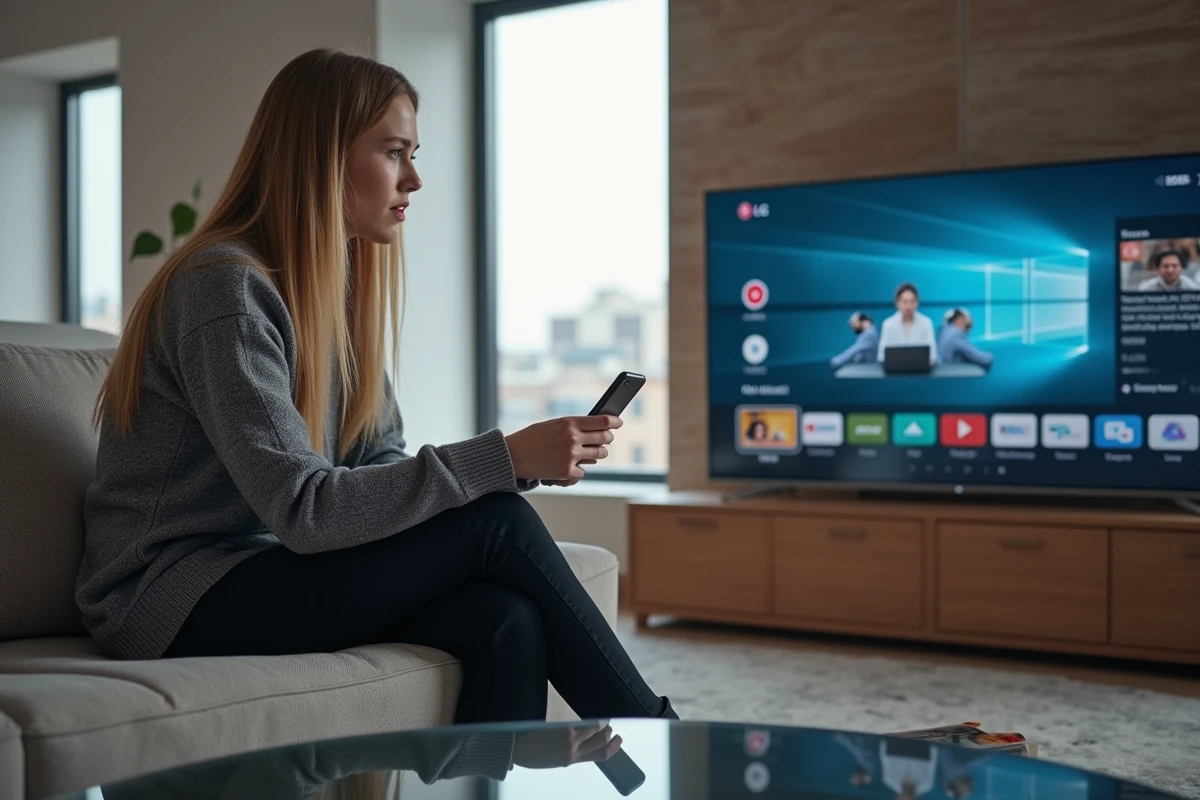
Another, more technical option: use an Android emulator (like BlueStacks, Nox Player, or MEmu) to run Android applications on your television. Performance will depend heavily on the capabilities of your LG model. Simpler, mirroring involves streaming the screen of an Android or iOS smartphone to the TV via Screen Share or AirPlay 2. This is convenient for temporarily displaying an application from your mobile without installing anything on the television.
Before you start, keep the following points in mind:
- A Google account is essential to access the Google Play Store via an Android box or emulator.
- The use of external devices or emulation solutions does not come with official support and may affect the manufacturer’s warranty.
Tip: how to make the most of Android applications on your LG television
Opening access to the Play Store on an LG Smart TV multiplies the possible uses. Major streaming applications (Netflix, Disney+, Amazon Prime Video, YouTube) are already offered on the LG Content Store. To further expand the range, simply explore Android applications via an external box or by mirroring a mobile device. Video game enthusiasts, for example, can find popular titles and even access cloud gaming platforms like GeForce NOW or Xbox Cloud Gaming, either from a browser or via an Android TV box.
For an even smoother experience, equip yourself with a Bluetooth mouse or a mini keyboard: navigating through Android menus becomes much more comfortable, while the LG remote remains ideal for controlling the TV’s native functions. On the productivity side, it is possible to install tools like WPS Office or Google Docs. And to view photos and documents on the big screen, sync Google Photos or Google Drive on the connected device after setting up your Google account.
Here are some tips to optimize the use of your connected television:
- For quality sound, connect the TV to a soundbar or home theater, then launch your playlists on Spotify or Deezer from the corresponding Android application.
- LG forums and specialized user groups are full of tips, practical solutions, and shared experiences. Don’t hesitate to consult them to bypass certain blocks or find compatible alternatives.
Educational applications, fitness sessions, or video conferences: once unlocked, the LG Smart TV transforms into a true multimedia center. To go further in customization, some Android launchers (ATV Launcher, HALauncher) allow you to reorganize the interface and quickly find your favorite applications.
It’s up to you to create your connected living room: between software tweaks and turnkey solutions, each user can design their own experience, well beyond the limits set by WebOS.